
User guide
Seven simple steps, from installing to player settings.
-
Step 1
Download and install NEXORA TV
From the Download page. Once it's on the App Store tap Get; for the beta, install Apple's TestFlight, open the invitation and tap Install.
-
Step 2
Get a subscription from an external provider
NEXORA TV sells no subscriptions. You need one from a provider you use, who gives you a server URL, a username and a password.
-
Step 3
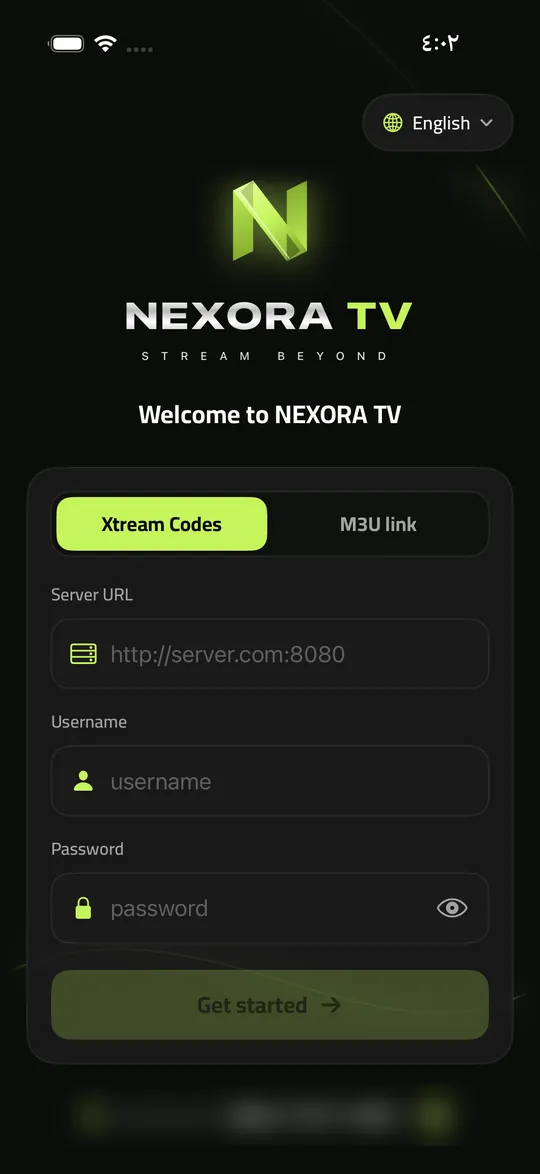
Enter your subscription details
Open the app, choose a language if you like, type the details exactly as your provider sent them, and tap 'Get started'. The eye button shows the password so you can check it.
-
Step 4
Wait for the library to load
The first time, the app fetches the channels, movies and series in your subscription and sorts them; it can take a moment. A copy is then kept on your device so it opens quickly.
-
Step 5
Move between Live, Movies and Series
The bottom bar has Home, Live, Movies, Series and Settings. In Live the player stays on top, with the country button and folder strip to pick channels.
-
Step 6
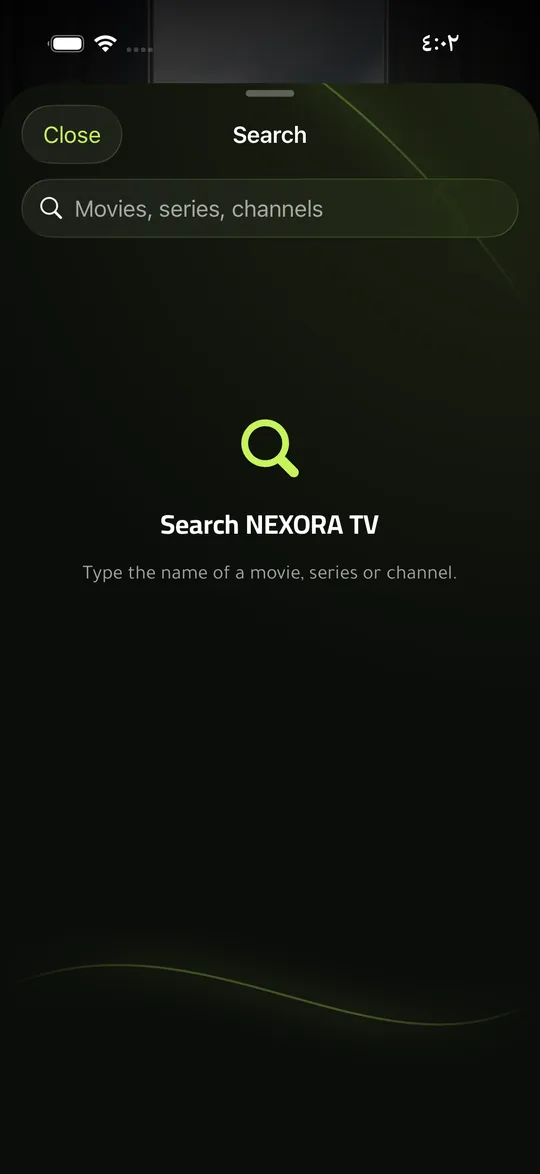
Search, favorites and history
The magnifier on Home searches. 'My List' or the star adds favorites. 'Continue watching' picks up where you stopped.
-
Step 7
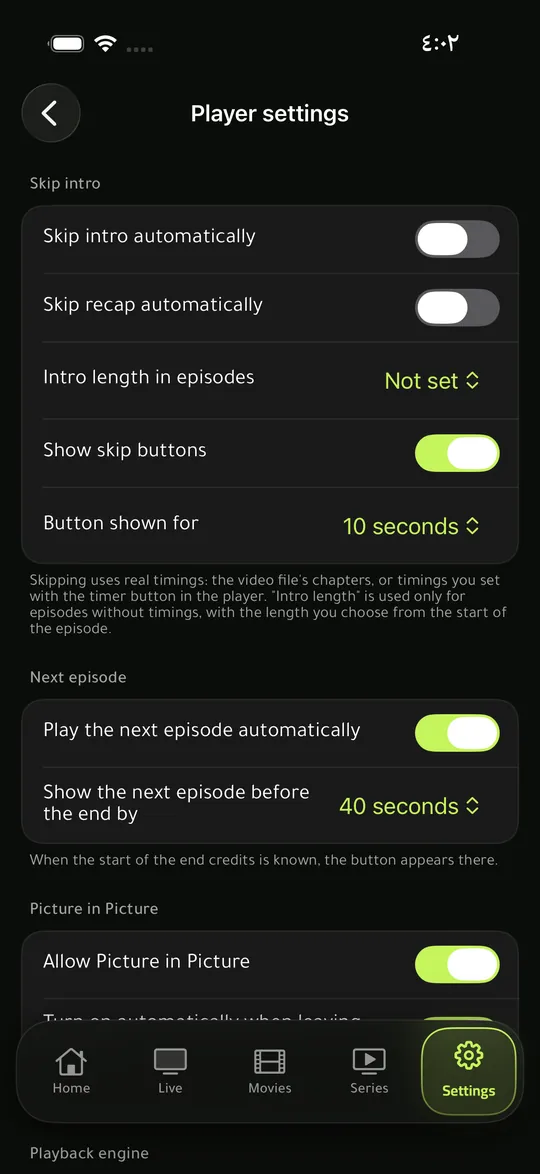
Player, audio and subtitles
Touch the screen for controls, swipe on either side for brightness and volume. The player's settings button picks subtitles, audio track and aspect. Settings → Player settings has intro skipping, next episode, Picture in Picture, playback engine and a sleep timer.
Quick questions
Does the app provide subscriptions?
No. NEXORA TV is only a media player; it does not sell or provide subscriptions.
Can I use the app without a subscription?
You need compatible service details from an external provider; the app itself contains no content.
Where do I get my login details?
From your own service provider: the server URL, username and password.
Why don't the channels play?
Check your subscription details and that it's still valid, stop playback on any other device using it, then contact your provider if it continues.
Does the app sell movies or series?
No. The app does not sell or host any channels, movies or series.